
You turn on your mobile data, the signal bars look fine, but nothing loads. No WhatsApp messages, no web pages, no social media — just frustration. This is one of the most common smartphone problems, and it can happen on any Android phone and any network.
The good news is that in most cases, the problem is not serious and you can fix it yourself in a few minutes. In this guide, you’ll learn why mobile data shows as connected but the internet doesn’t work, and the exact steps you can take to fix it.
Why Is My Mobile Data On but There Is No Internet?
When your phone shows that mobile data is on, it only means you are connected to your network provider’s tower. It does not always mean that the internet connection is actually working.
Some common reasons include:
- Network issues in your area
- Wrong APN settings
- Data bundle finished
- Background data blocked
- SIM card problems
- Temporary phone system errors
Let’s go through the solutions step by step.
Turn Airplane Mode On and Off
This is one of the fastest ways to refresh your network connection.
What to do:
- Turn on Airplane Mode
- Wait for about 30 seconds
- Turn it off again
This forces your phone to disconnect and reconnect to the nearest network tower. Many times, this simple step immediately restores internet access.
Restart Your Phone
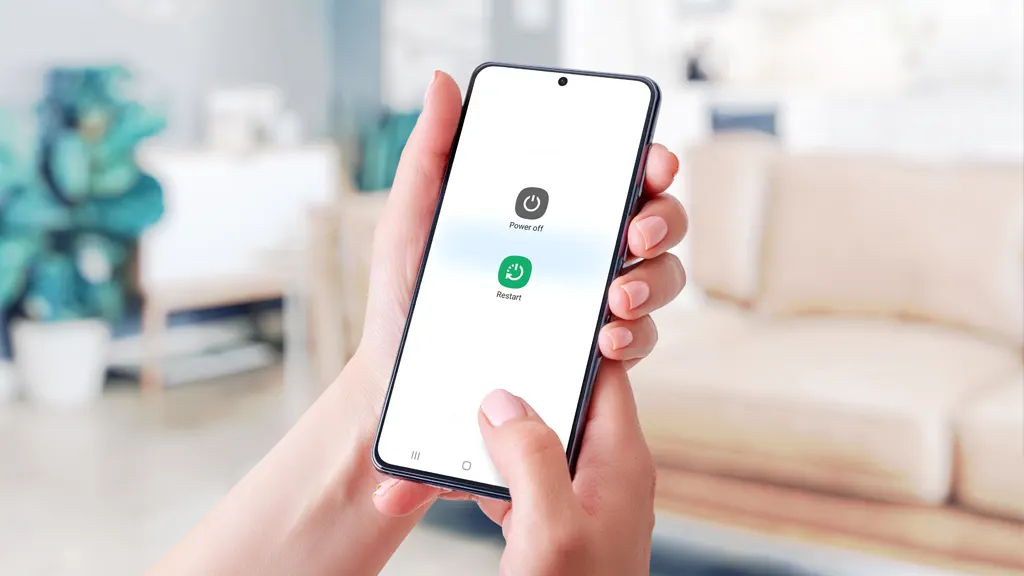
Your phone may be stuck in a temporary network error state.
Fix:
- Press and hold the Power button
- Tap Restart
Restarting clears background processes and reconnects all network services properly. After restarting, wait a few seconds and test your mobile data again.
Check If You Have an Active Data Bundle
Sometimes the problem is simply that your data bundle has finished.
What to check:
- Open your network provider’s app
- Dial your network’s data balance code
If your data is finished, you will not be able to browse even though mobile data is turned on. Buy a new bundle and try again.
Check Network Coverage in Your Area
Even if signal bars are showing, the network may be weak or unstable.
Try this:
- Move closer to a window or go outside
- Change your location slightly
- Avoid underground or enclosed areas
You can also try switching network modes.
Steps:
- Go to Settings → Mobile Network
- Tap Preferred network type
- Try switching from 4G to 3G or 5G to 4G
Then test your internet again.
Turn Off Data Saver Mode
Data Saver can block apps from using mobile data properly.
Fix:
- Go to Settings → Network or Data usage
- Tap Data Saver
- Turn it OFF
Also check that background data is allowed for apps like browsers and WhatsApp.
Check and Reset APN Settings
APN (Access Point Name) settings tell your phone how to connect to your network’s internet service. If these are wrong, your data will not work.
Steps:
- Go to Settings → SIM or Mobile Network
- Tap Access Point Names (APN)
- Tap Reset to default
If resetting does not work, search online for your network’s correct APN settings and enter them manually.
After changing APN:
- Restart your phone
- Test mobile data again
Remove and Reinsert SIM Card
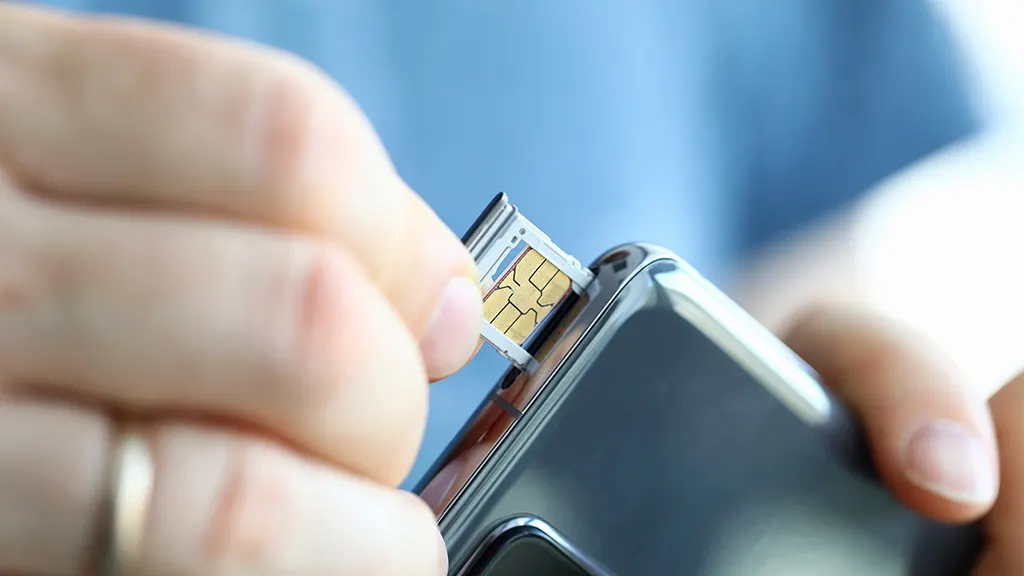
A poorly connected SIM card can cause internet problems.
What to do:
- Turn off your phone
- Remove the SIM card
- Clean it gently with a dry cloth
- Insert it properly again
- Restart your phone
If you have dual SIM, try switching data to the other SIM to test if the issue is SIM-related.
Test Your SIM in Another Phone
This helps you know where the problem is coming from.
If internet does NOT work in another phone:
- The problem is likely from your network or SIM card
If internet works in another phone:
- The problem is with your phone settings or hardware
This test saves you from guessing and helps you know what to fix.
Check If Your Data Speed Is Restricted
Some data plans slow down or stop internet when you reach a usage limit.
What to do:
- Check your plan details in your network app
- Contact customer support to confirm
If speed is heavily reduced, websites may fail to load properly even though data is on.
Reset Network Settings
If nothing else works, resetting network settings can fix hidden configuration problems.
This will reset:
- Mobile data settings
- Wi-Fi connections
- Bluetooth connections
But it will NOT delete your photos or apps.
Steps:
- Go to Settings → System → Reset options
- Tap Reset network settings
- Confirm and restart phone
Then test your mobile data again.
Check for Apps That May Block Internet
Some apps can interfere with your data connection.
These include:
- VPN apps
- Firewall apps
- Data control apps
- Phone booster apps
Fix:
- Disable or uninstall such apps
- Restart your phone
- Test your data again
If internet starts working, one of those apps was the cause.
Update Your Phone Software
Outdated software can sometimes cause network bugs.
Steps:
- Go to Settings → Software Update
- Install any available updates
Updates often fix connectivity issues and improve network stability.
When Should You Contact Your Network Provider?
If you have tried all the fixes and mobile data still does not work, the issue may be from your network provider.
Contact customer support if:
- Your SIM shows no internet on multiple phones
- Your area has network problems
- Your SIM may be blocked or damaged
They can check your line and network status from their system.
READ: Check our guide on how to fix WhatsApp messages not sending.
How to Prevent Mobile Data Problems in the Future
Follow these habits to reduce future issues:
- Keep phone software updated
- Avoid unknown VPN or booster apps
- Don’t change APN unless needed
- Restart your phone weekly
- Monitor your data usage
Final Thoughts
Mobile data showing as connected but not working is annoying, but it is rarely a serious problem. In most cases, refreshing the network, checking your data balance, fixing APN settings, or resetting network settings will solve it.
Before assuming your phone is damaged, always try these simple fixes first. They save you time and money, and most of the time they restore your internet immediately.