
Is your internet painfully slow on your Android phone? Pages take forever to load, videos keep buffering, and apps struggle to connect. Slow internet can be extremely frustrating, especially when you need quick access for work, school, or communication.
The good news is that slow internet on Android phones is usually caused by simple problems that you can fix yourself. In this guide, you will learn the real reasons why your connection is slow and how to speed up slow internet on Android phones using easy, safe methods.
Why Is My Internet So Slow on Android?
Before fixing the problem, it helps to understand what might be causing it. Slow internet on Android phones can happen due to:
- Weak mobile network signal
- Poor Wi-Fi connection
- Too many background apps using data
- Phone storage almost full
- Old software or app bugs
- Data saver or battery saver restrictions
- Network congestion during busy hours
Now let’s go through the best solutions to speed up slow internet on Android phones.
Check Your Network Signal Strength
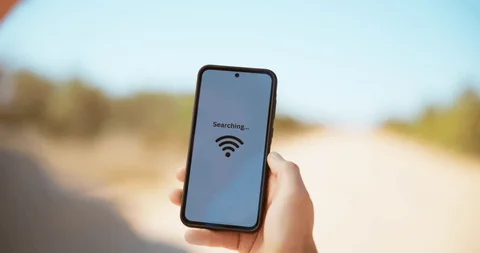
If your mobile network signal is weak, your internet speed will be slow no matter what you do on your phone.
What to do:
- Move to an open area or near a window
- Avoid basements or closed rooms
- Switch to Wi-Fi if available
If you’re using Wi-Fi and it’s slow, move closer to the router or restart the router if possible.
Strong signal is the foundation for fast internet.
Turn Airplane Mode On and Off
This simple trick refreshes your network connection.
Steps:
- Turn on Airplane Mode
- Wait 30 seconds
- Turn it off again
This forces your phone to reconnect to the network and often improves internet speed instantly.
Restart Your Android Phone
Your phone may have background processes slowing down network performance.
Restarting clears memory and reconnects all network services.
How:
- Press and hold the Power button
- Tap Restart
After restarting, test your internet speed again.
Close Apps Running in the Background
Some apps continue using internet even when you’re not using them.
These include:
- Social media apps
- Cloud backup apps
- Streaming apps
Fix:
- Tap Recent Apps
- Close apps you’re not using
Less background activity means more bandwidth for the app you are currently using.
See our guide on WhatsApp messages not sending and how to fix it.
Turn Off Data Saver Mode
Data Saver is designed to reduce data usage, but it can also slow down your internet and block background loading.
Steps:
- Go to Settings
- Tap Network or Data usage
- Tap Data Saver
- Turn it OFF
This can immediately improve loading speeds for apps and websites.
Clear Cache of Browser and Apps
Over time, cached files can slow down browsing and app performance.
For browser:
- Open browser settings
- Clear cache and browsing data
For other apps:
- Go to Settings → Apps
- Select the app
- Tap Storage → Clear Cache
Do not tap Clear Data unless necessary, as it may log you out of apps.
Clearing cache helps apps load faster and reduces lag.
Switch Between Network Modes
Sometimes your phone stays connected to a weak 4G or 5G signal when a stronger 3G connection is available.
Try this:
- Go to Settings → Mobile Network
- Tap Preferred Network Type
- Switch between:
- 5G/4G
- 4G/3G
Test which one gives better speed in your location.
Check for System and App Updates
Outdated software can cause network bugs and slow performance.
Steps:
- Go to Settings → Software Update
- Install any available updates
Also update apps from the Play Store. Developers often fix speed and connection issues through updates.
Free Up Phone Storage
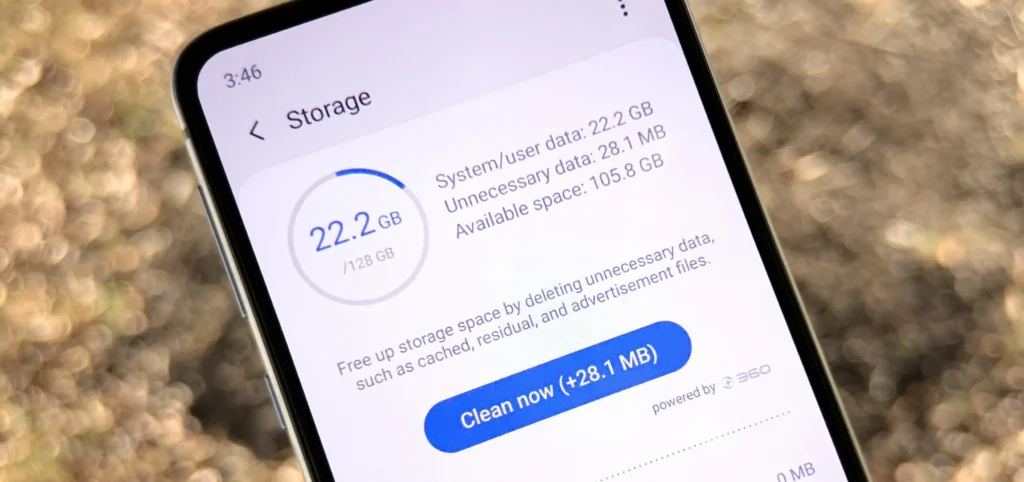
Low storage can slow down your entire phone, including internet performance.
Check storage:
- Go to Settings → Storage
If storage is almost full:
- Delete unused apps
- Remove large videos
- Clear downloads folder
A phone with free storage runs faster and handles internet tasks better.
Disable Unnecessary VPN Apps
VPNs can slow down your internet because your data passes through another server.
If you’re using a VPN and your internet is slow:
- Turn off the VPN
- Test speed again
Only use VPN when necessary.
Reset Network Settings
If your internet remains slow after trying everything, resetting network settings may help.
This will reset:
- Wi-Fi connections
- Mobile network settings
- Bluetooth connections
It will NOT delete your files.
Steps:
- Go to Settings → System → Reset options
- Tap Reset network settings
- Restart your phone
This often fixes hidden configuration problems.
Check If Your Data Plan Is Throttled
Some data plans reduce speed after reaching a certain usage limit.
What to do:
- Check your data balance
- Check speed limits on your plan
- Contact your network provider if unsure
If your plan is throttled, only buying a new bundle or waiting for reset will restore speed.
Best Habits to Keep Internet Fast on Android
To prevent slow internet in the future:
- Restart phone weekly
- Keep apps and system updated
- Avoid too many background apps
- Don’t use unnecessary VPNs
- Maintain enough free storage
- Avoid heavy downloads during peak hours
Good phone habits improve both speed and battery life.
When Should You Suspect Hardware Problems?
Rarely, slow internet can be caused by hardware issues.
Possible signs:
- Phone heats up during browsing
- Network drops frequently
- SIM works well in other phones
If this happens, visiting a repair technician may be necessary.
Conclusion
Slow internet can make your Android phone feel useless, but in most cases, the problem is not serious. By checking your signal, restarting your phone, turning off data saver, clearing cache, and updating your system, you can easily speed up slow internet on Android phones.
Always try simple fixes before assuming something is broken. Most users see improvement within minutes of applying these tips.