
In this guide, you’ll learn exactly how to free up storage on Android without deleting apps, using simple and safe methods that work in 2026.
Why Does Android Storage Fill Up So Fast?
Even if you don’t install many apps, your phone storage fills up because of:
- App cache files
- Duplicate photos and videos
- WhatsApp media downloads
- Temporary system files
- Old downloads and documents
These files silently use up space until your phone becomes slow and full.
Clear App Cache (Big Storage Saver)
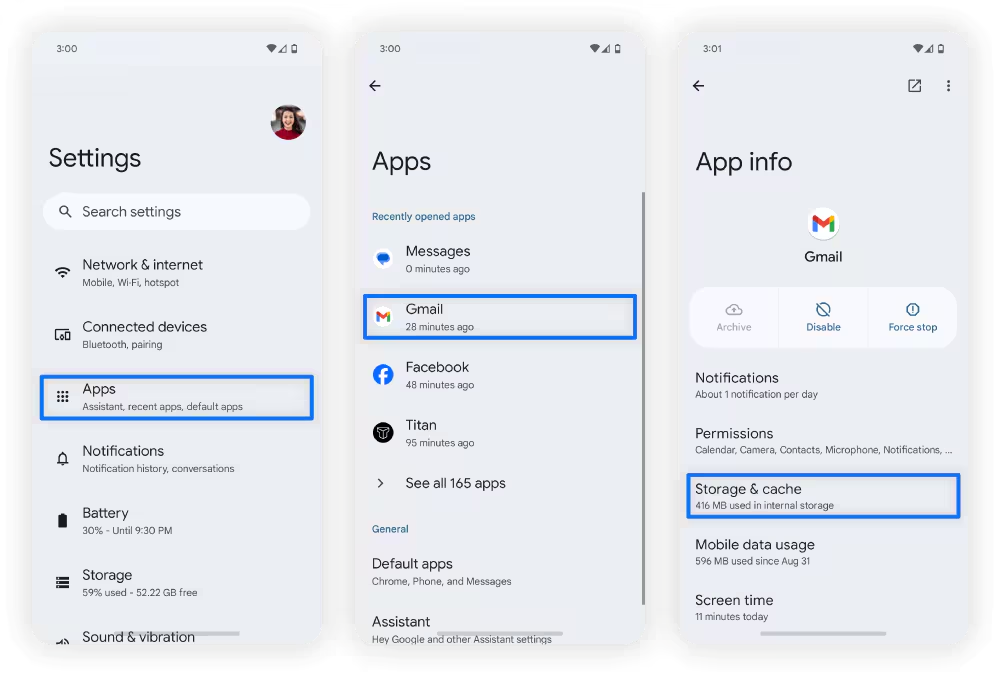
Apps store temporary files called cache to load faster, but over time this cache becomes huge.
How to clear cache:
- Go to Settings → Apps
- Select an app (start with Chrome, Facebook, WhatsApp)
- Tap Storage
- Tap Clear Cache
Do NOT tap Clear Data unless necessary.
Clearing cache does not delete your account or app settings, and it can free hundreds of MBs.
Use Android Storage Cleaner
Most Android phones have built-in storage cleaning tools.
Steps:
- Go to Settings → Storage
- Tap Clean Up or Free Up Space
Your phone will suggest:
- Junk files
- Old screenshots
- Duplicate files
Review and delete safely.
Delete WhatsApp Media Without Deleting Chats
WhatsApp is one of the biggest storage users on Android phones.
How to clean WhatsApp storage:
- Open WhatsApp
- Go to Settings → Storage and Data
- Tap Manage Storage
You will see:
- Large videos
- Forwarded files
Delete heavy files without deleting chats or contacts.
Move Photos and Videos to Cloud Storage
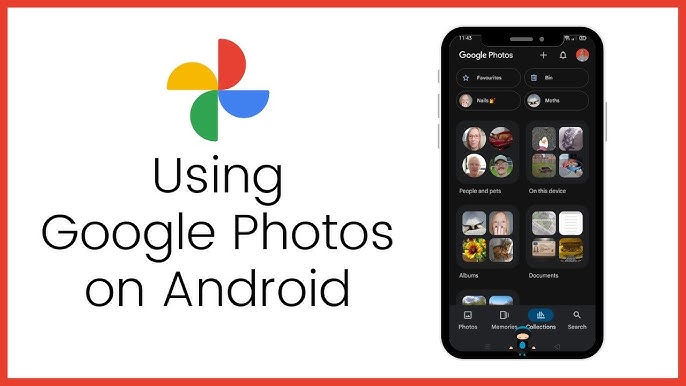
Your gallery uses a lot of space.
Instead of deleting photos, back them up and remove them from phone storage.
Options:
- Google Photos
- Google Drive
- External memory card (if supported)
Using Google Photos:
- Turn on Backup
- After backup, use Free Up Space option
Your photos remain online and can be accessed anytime.
Clear Download Folder
Many users forget about downloaded files.
Steps:
- Open File Manager
- Go to Downloads
- Delete old documents, videos, and APK files
These files often take up several GBs without you noticing.
Remove Offline Maps and Music
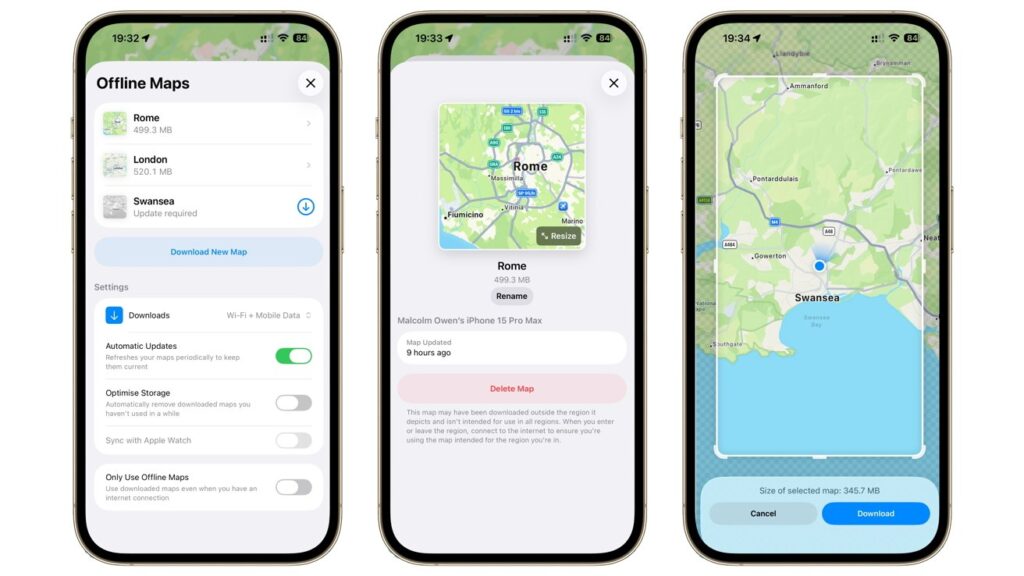
Offline content saves data but uses storage.
Check and remove:
- Offline Google Maps
- Downloaded Spotify or YouTube videos
Example:
- Google Maps → Offline Maps → Delete unused maps
- Spotify → Settings → Storage → Clear Cache
Use Lite Versions of Apps
Some apps store large data locally.
Consider replacing:
- Facebook → Facebook Lite
- Messenger → Messenger Lite
Lite apps use less storage and less background data.
Clean Duplicate Files
Many phones have duplicate photos, videos, and documents.
Use:
- Files by Google app
It helps you find:
- Duplicate files
- Large files
- Unused apps
Delete duplicates safely and quickly.
Remove Old System Update Files
Sometimes update packages remain after installation.
Steps:
- Go to Settings → Storage
- Check System Files
If you see update leftovers, your phone may allow you to clear them.
(Not all phones support this option.)
Restart Your Phone After Cleaning
Restarting helps your system refresh and recalculate available space.
It also improves overall performance after cleaning.
How Much Storage Should Be Free?
For smooth performance, try to keep:
- At least 15–20% of total storage free
Phones with almost full storage become slow and unstable.
When Storage Problems Keep Coming Back
If storage fills up again quickly:
- Check WhatsApp auto-download settings
- Disable auto-saving of media
- Review apps that store videos offline
Managing storage regularly prevents future issues.
Running out of storage does not mean you must delete your favorite apps. By clearing cache, removing large files, managing WhatsApp media, and using cloud backup, you can easily free up storage on Android without deleting apps.
These simple steps not only give you more space but also make your phone faster and smoother.