
Forgetting your Gmail password is stressful, especially when you no longer have access to your recovery phone number. Many people panic and think their account is lost forever, but that is not true.
Google provides several ways to recover your account even if you cannot receive verification codes on your old phone number. As long as you can prove that the account belongs to you, there is still a good chance of getting it back.
In this guide, you will learn exactly how to recover Gmail password without recovery phone, using methods that work in 2026. Follow each step carefully to increase your chances of success.
Why You May Lose Access to Your Recovery Phone
There are many reasons why people cannot access their recovery phone:
- You changed your phone number
- You lost your SIM card
- Your phone was stolen
- You no longer use that network
When this happens, Google will try other ways to confirm your identity instead of sending codes to your phone.
First Important Step: Go to Gmail Account Recovery Page
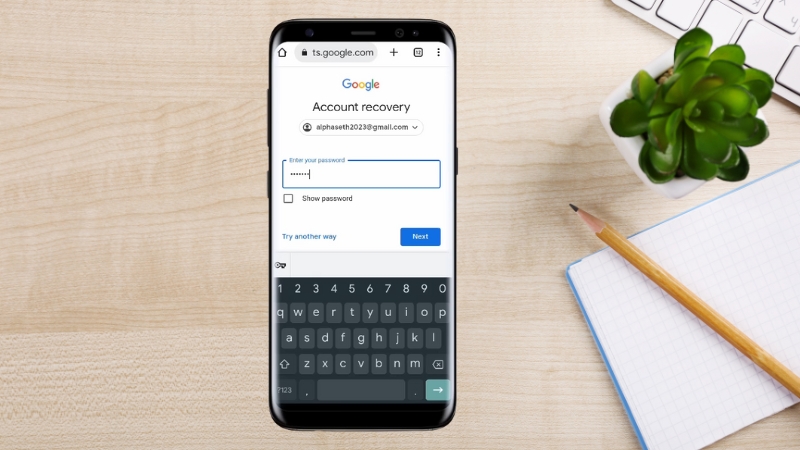
To start the process, you must use Google’s official recovery system.
What to do:
- Go to: https://accounts.google.com/signin/recovery
- Enter your Gmail address
- Click Next
When asked for your password, click Try another way.
Do not guess passwords too many times, because too many wrong attempts can slow down recovery.
Choose Recovery Without Phone Option
Since you do not have access to your recovery phone, you must keep selecting alternative methods.
Each time Google suggests sending a code to your phone, click:
👉 Try another way
Eventually, Google will offer other verification options such as:
- Recovery email
- Security questions (for older accounts)
- Device verification
- Manual review by Google
Patience is very important during this step.
Recover Gmail Using Recovery Email
If you added a recovery email when creating your account, this is the easiest way.
Steps:
- Select recovery email option
- Google sends a code to your backup email
- Enter the code
- Create a new password
This method works even if you do not have your recovery phone number.
If you don’t receive the email, check spam folder.
Recover Gmail Using a Trusted Device
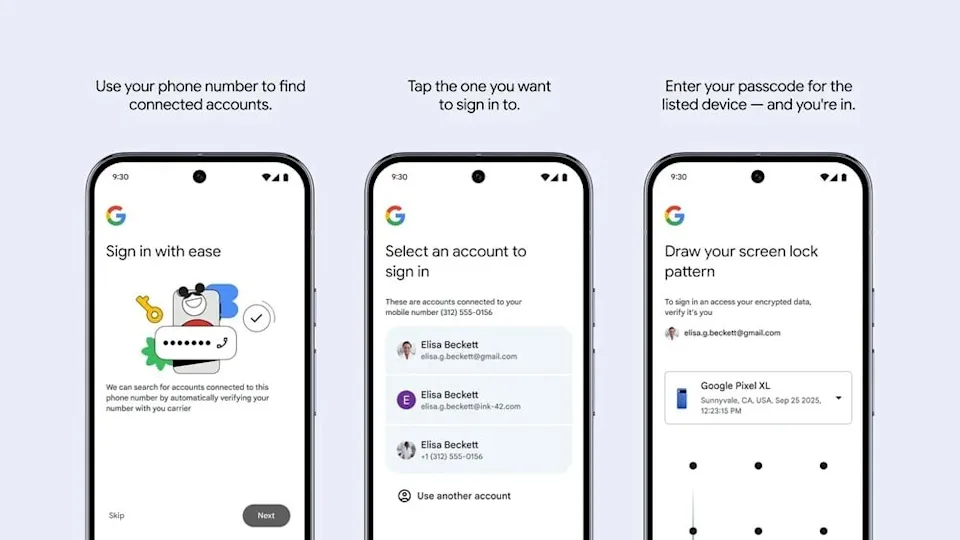
Google may recognize devices you used before, such as:
- Your usual phone
- Your laptop
- Your home Wi-Fi network
If you try recovery on a device you previously used with that Gmail account, Google is more likely to trust you.
Tips:
- Use the same phone or computer you used before
- Connect to your normal Wi-Fi network
- Try during normal hours when you usually log in
Google may allow you to reset your password after confirming device activity.
Recover Gmail Without Phone and Without Recovery Email
If you don’t have access to both recovery phone and recovery email, Google may still allow recovery using identity verification.
This process is slower but still possible.
Google may ask:
- When you created the account (month and year)
- Previous passwords you remember
- Devices you used before
Answer as accurately as possible. Even approximate answers can help.
After submitting answers, Google may take 24–72 hours to review your request.
If approved, you will receive instructions to reset your password.
Important Things That Increase Your Recovery Success
To improve your chances when trying to recover Gmail password without recovery phone, follow these rules:
- Use devices you previously logged in with
- Use the same location or Wi-Fi if possible
- Avoid using VPN during recovery
- Provide accurate information
- Do not submit multiple requests in a short time
Google uses many signals to confirm identity, not just phone numbers.
What to Do If Recovery Fails
Sometimes recovery attempts are denied, especially if:
- The account was rarely used
- Very little information is available
- The account was created long ago
If recovery fails:
- Wait a few days and try again
- Use another trusted device if available
- Try from another network location you previously used
Unfortunately, if Google cannot confirm ownership, the account cannot be recovered.
There is no paid service or support agent who can bypass this system.
Beware of people claiming they can hack or recover accounts for money — those are scams.
How to Secure Your Gmail After Recovery
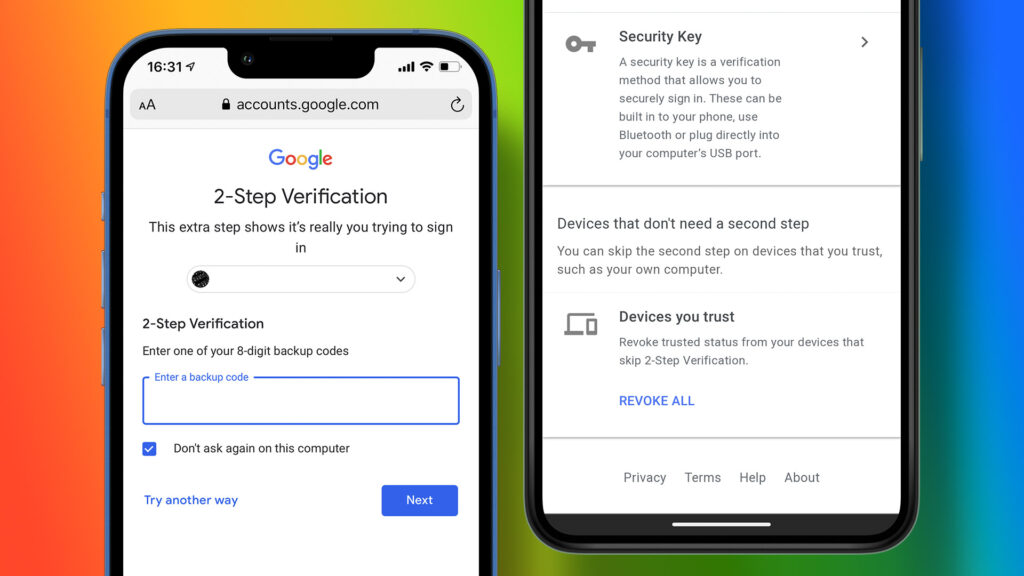
Once you recover your account, immediately improve your security to avoid losing it again.
Do this immediately:
- Add a new recovery phone number
- Add a recovery email address
- Change password to strong unique one
- Enable two-step verification
Also review recent activity to check for suspicious logins.
How to Prevent Losing Gmail Access in the Future
To avoid going through this stress again:
- Keep recovery details updated
- Save backup codes from Google
- Avoid using weak passwords
- Do not share verification codes with anyone
Good security habits protect your email and all connected accounts.
Why Gmail Recovery Can Take Time
Many people complain that recovery is slow, but Google does this for safety.
If hackers could easily recover accounts, millions of people would lose access every day.
That is why Google carefully checks:
- Login history
- Device fingerprints
- Network behavior
This protects you from hackers trying to steal your account.
Final Thoughts
Losing access to your Gmail account is scary, but even without your recovery phone number, there is still hope. Google provides multiple verification methods to confirm ownership and help you reset your password.
By using trusted devices, answering questions correctly, and following the proper recovery process, you can successfully recover Gmail password without recovery phone and regain access to your important emails.
Once you recover your account, don’t forget to secure it properly to avoid future problems.