
Have you ever noticed your mobile data finishing faster than expected, even when you barely browse the internet? In most cases, the problem is not you — it’s background apps silently using your data without permission.
Many Android apps continue syncing, refreshing, uploading, and downloading data even when you are not actively using them. This can quickly consume your data bundle and slow down your phone.
The good news is that you can control this behavior. In this guide, you’ll learn how to stop background apps from using data on Android, using simple settings that work on most phones in 2026.
Why Do Background Apps Use Mobile Data?
Android apps are designed to stay updated in the background. They use data for:
- Syncing messages and emails
- Auto-refreshing social media feeds
- Uploading photos and backups
- Downloading updates
- Showing ads
Apps like Facebook, Instagram, TikTok, Google services, and cloud storage apps are some of the biggest background data users.
Check Which Apps Are Using Background Data
Before blocking anything, you need to identify the apps using the most data.
What to do:
- Go to Settings → Network & Internet
- Tap Data Usage or Mobile Data
- Select App data usage
You’ll see a list of apps and how much data they’ve used in the background.
Apps with high background usage should be your first targets.
Restrict Background Data for Individual Apps
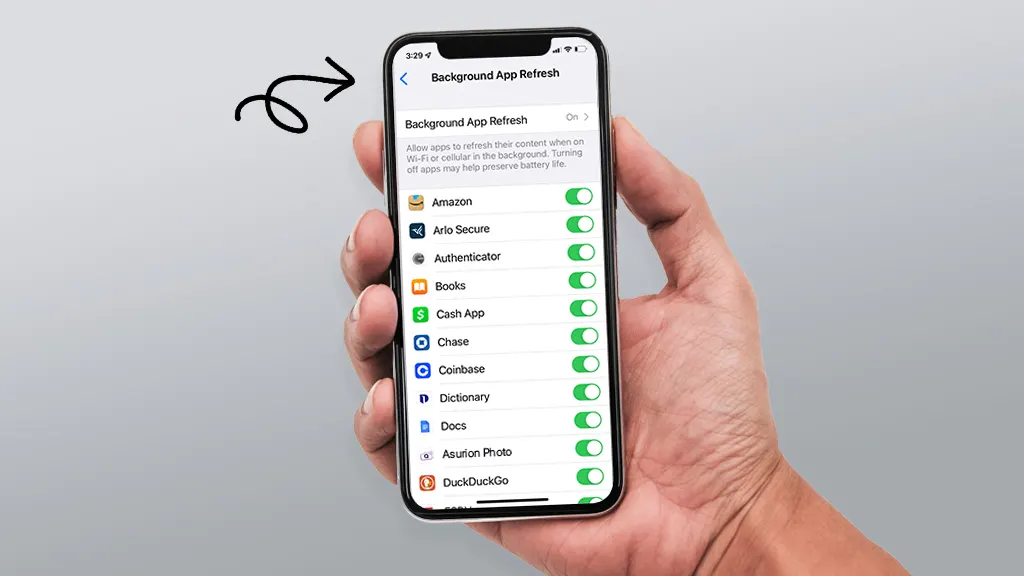
This is one of the most effective ways to stop background apps from using data on Android.
Steps:
- Go to Settings → Apps
- Select the app (e.g., Facebook)
- Tap Mobile Data & Wi-Fi or Data Usage
- Turn OFF Background data
This prevents the app from using mobile data unless you open it.
Repeat this for apps you don’t need to sync constantly.
Turn On Data Saver Mode
Data Saver is a built-in Android feature designed to limit background data usage.
How to enable:
- Go to Settings → Network & Internet
- Tap Data Saver
- Turn it ON
When Data Saver is on:
- Background data is restricted
- Apps refresh only when opened
- Data usage drops significantly
You can allow exceptions for important apps like WhatsApp or Gmail.
Limit Background Data for System Apps
System apps can also use data quietly.
Check and restrict:
- Google Photos (backup uploads)
- Google Drive
- Google Play Store
- Google Sync services
Example:
- Google Photos → Settings → Backup
- Turn OFF mobile data backup
- Allow backups only on Wi-Fi
This alone can save a lot of data.
ALSO READ: Background apps can slow browsing. Read How to Speed Up Slow Internet on Android Phones.
Disable Auto App Updates on Mobile Data
App updates can consume large amounts of data without warning.
Fix:
- Open Google Play Store
- Tap your profile picture
- Go to Settings → Network Preferences
- Tap Auto-update apps
- Select Over Wi-Fi only
This prevents surprise data loss.
Stop Background Sync for Unnecessary Accounts
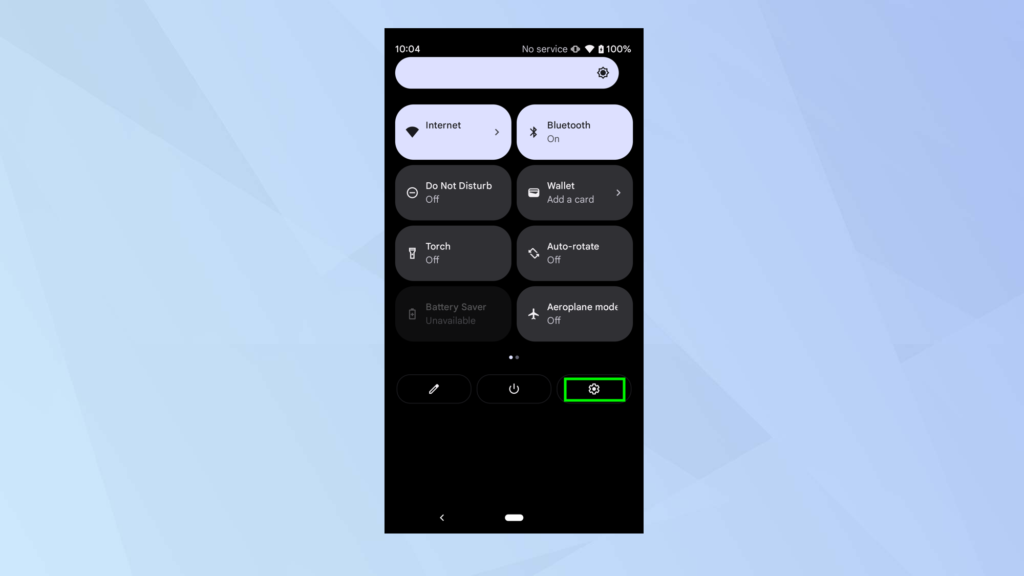
Your phone may sync multiple accounts in the background.
Steps:
- Go to Settings → Accounts
- Select an account
- Turn OFF sync for items you don’t need
Reducing sync activity helps control background data usage.
Use Lite Versions of Apps
Lite apps are designed to use less data and storage.
Consider switching:
- Facebook → Facebook Lite
- Messenger → Messenger Lite
Lite apps refresh less often and consume less background data.
Turn Off Background Data When Using Dual SIM
On dual-SIM phones, background data can run on the wrong SIM.
Fix:
- Go to Settings → SIM Cards
- Set a clear default data SIM
- Disable background data for apps on the secondary SIM
This helps avoid unexpected data drain.
Block Background Data for Apps Using Firewall (Advanced)
Some phones support firewall or network control features.
You can also use trusted apps like:
- NetGuard
- GlassWire
These apps let you:
- Block background data per app
- Monitor real-time data usage
Only download from Play Store and avoid fake data-control apps.
Turn Off Mobile Data When Screen Is Off (Optional)
Some phones allow limiting data usage when the screen is off.
If available:
- Enable Restrict background activity
- Disable Allow background data when screen off
This further reduces hidden data usage.
Monitor Data Usage Regularly
Checking your data usage weekly helps prevent surprises.
Habit to build:
- Review data usage once a week
- Identify new apps using data
- Restrict them early
Small actions save big data.
When Background Data Restriction Causes Problems
After restricting background data, some apps may:
- Delay notifications
- Sync messages only when opened
If this happens:
- Allow background data for important apps only
- Keep restrictions for non-essential apps
Balance is key.
Final Thoughts
Background apps are one of the biggest reasons mobile data finishes quickly on Android phones. By checking app data usage, enabling Data Saver, restricting background access, and controlling system services, you can significantly reduce data consumption.
Learning how to stop background apps from using data on Android not only saves money but also improves phone performance and battery life.