
Is WhatsApp showing only one tick, “sending…” or failing to send your messages completely? This problem can be very frustrating, especially when you urgently need to contact someone.
The good news is — in most cases, WhatsApp messages not sending is caused by simple issues like internet problems, app errors, or phone settings, and you can fix it yourself in minutes.
In this guide, you’ll learn the common reasons WhatsApp messages fail to send and the exact steps to fix them on Android phones in 2026.
Why Are My WhatsApp Messages Not Sending?
Before fixing the problem, let’s look at the most common causes:
- Weak or no internet connection
- WhatsApp servers temporarily down
- App cache problems
- Background data blocked
- Outdated WhatsApp version
- Phone storage full
- Power-saving mode restricting apps
- Account verification issues
Now let’s fix them one by one.
1. Check Your Internet Connection
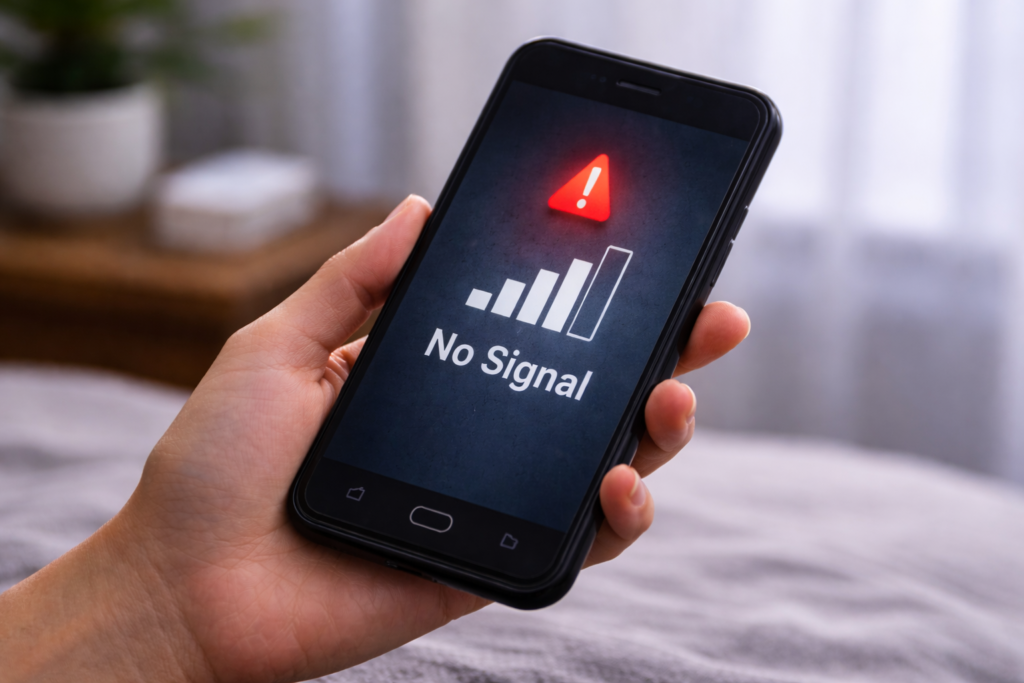
WhatsApp needs a stable internet connection to send messages.
What to do:
- Turn mobile data OFF and ON
- Turn Wi-Fi OFF and ON
- Try opening a website in your browser
If websites don’t load, the problem is your internet, not WhatsApp.
Tip:
If network is weak, move to a place with better signal or switch to Wi-Fi.
2. Check If WhatsApp Is Down
Sometimes the problem is not from your phone — WhatsApp servers may be down.
How to check:
- Ask a friend if their WhatsApp is working
- Search on Google: “Is WhatsApp down?”
If servers are down, you just need to wait. Your messages will send automatically once service is restored.
3. Restart Your Phone
Temporary system glitches can block apps from connecting properly.
Fix:
- Press and hold Power button
- Tap Restart
This simple step solves many WhatsApp issues.
4. Clear WhatsApp Cache (Not Data)
Cache files can get corrupted and stop WhatsApp from working properly.
Steps:
- Go to Settings → Apps → WhatsApp
- Tap Storage
- Tap Clear Cache (Do NOT tap Clear Data)
After clearing cache, open WhatsApp and try sending message again.
5. Allow Background Data for WhatsApp
If background data is blocked, WhatsApp can’t send messages when screen is off.
Fix:
- Go to Settings → Apps → WhatsApp
- Tap Mobile Data & Wi-Fi
- Turn ON:
- Background data
- Allow data usage in background
6. Turn Off Battery Saver or Power Saving Mode
Power saving mode may stop WhatsApp from working properly.
Steps:
- Go to Settings → Battery
- Turn OFF:
- Battery Saver
- Ultra Power Saving
Then try sending your message again.
7. Update WhatsApp to Latest Version
Old app versions can stop working properly.
Fix:
- Open Google Play Store
- Search WhatsApp
- Tap Update if available
Always keep WhatsApp updated in 2026 for better performance and security.
8. Check Phone Storage Space
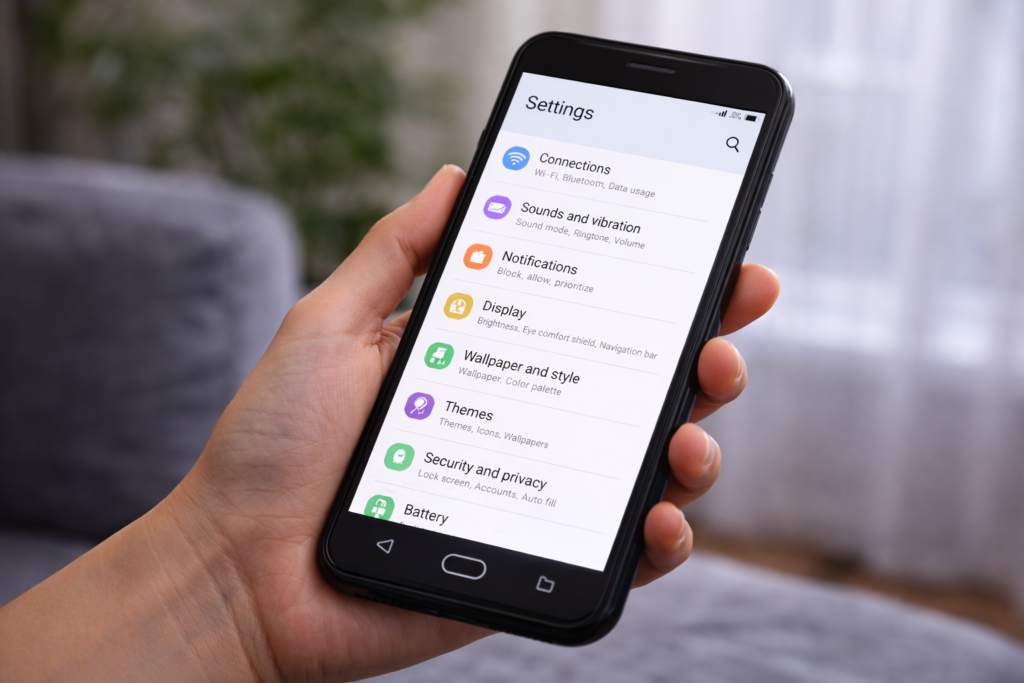
If your phone storage is full, apps may not work properly.
Fix:
- Go to Settings → Storage
- If storage is almost full:
- Delete unused apps
- Clear large files
- Delete old videos
WhatsApp needs free space to send and receive messages.
9. Check Date and Time Settings
Wrong date and time can block WhatsApp from connecting to servers.
Fix:
- Go to Settings → Date & Time
- Turn ON:
- Automatic date & time
- Automatic time zone
Restart phone after changing.
10. Re-Verify Your WhatsApp Number
If your account has issues, messages may not send.
Try this only if other steps fail:
- Backup chats (if possible)
- Uninstall WhatsApp
- Reinstall from Play Store
- Verify your phone number again
Make sure you can receive SMS before doing this.
What Do WhatsApp Tick Marks Mean?
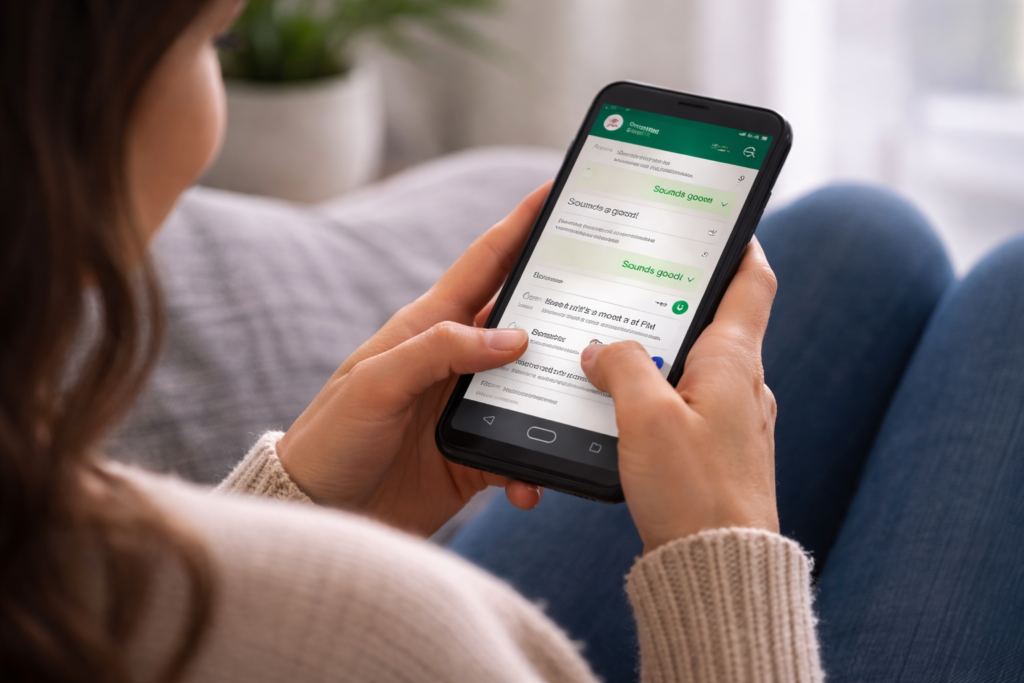
Understanding ticks can help you know where the problem is:
- Clock icon – Message not yet sent from your phone
- One tick – Message sent but not delivered
- Two ticks – Message delivered
- Blue ticks – Message read
If you see clock or one tick, the problem is usually internet or app-related.
When Should You Worry?
Contact WhatsApp support if:
- Messages never send for days
- Account is banned or restricted
- Verification keeps failing
You can contact support from:
WhatsApp → Settings → Help → Contact Us
How to Prevent WhatsApp Sending Problems
Follow these tips:
- Keep WhatsApp updated
- Maintain enough phone storage
- Avoid aggressive battery saver apps
- Use stable internet connection
- Restart phone at least once a week
Prevention saves you stress later.
READ MORE; If your phone is also overheating, check out our guide on how to fix Android phone overheating.
Final Thoughts
WhatsApp messages not sending is a common problem, but it’s rarely serious. In most cases, fixing your internet connection, clearing cache, or updating the app will solve the issue immediately.
If the problem continues even after trying all fixes, reinstalling WhatsApp or contacting support may be necessary.